
Quickstart
Your first run in about 10 minutes: set up once, describe the outcome, and watch every step run and get recorded.
Before you start
You need an Auprimus account in an organization, and one system with data you want to work on, such as a PostgreSQL database.
Set up once
Create a project
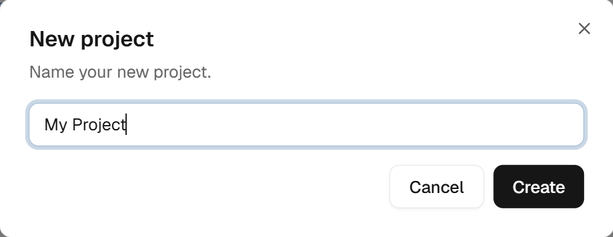
In the Projects panel on the left, select +, name the project and select Create. A project keeps its chats, workflows, connectors and files together.
Add a model key
Open Settings → API Keys, paste a key for your provider and select Save. One model works without a key, so you can also skip this for a first try. See API keys.
Connect your system
Under the message box, select Connectors, pick the family (for a database, Databases), select Connect and fill in the credentials. See Connectors.
Add your organization's skills (optional)
Select Skills under the message box to see the Auprimus skills. An admin can add your organization's own. See Organization skills.
Run
Pick the model and the guardrails
Under the message box, choose the model, and in Guardrails what Auprimus may do on its own: allow it, ask you first, or block it. See Guardrails.
Describe the outcome
Say what you want in plain English, for example: "Join the palm_blocks and palm_health_surveys tables, find what drives yield and disease, and write a Word report with charts." See Writing a good instruction.
Watch it run
Auprimus plans the work as a workflow of steps, then runs them. The chat shows its thinking; the DAG tab shows each step's status with the run's time, tokens and cost. See Watching a run.
Take the outputs and check the work
Open Files Explorer for tables, charts and reports. Select any step to see its logs, traces, metrics, lineage, cost and code. See Outputs and files and The step console.
Put it on a schedule
When the workflow does what you want, schedule it from its ··· menu. Scheduled runs replay the saved code. See Schedules.